How to Recall an Email in Outlook (And What Actually Works When It Fails)
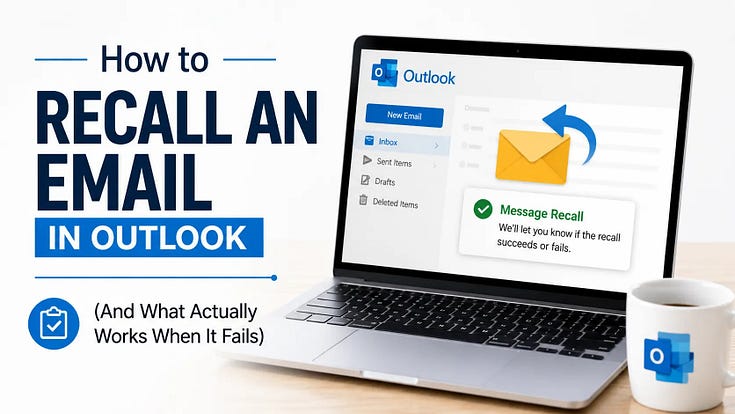
Sent an email by mistake? If you act quickly, you may be able to recall it in Outlook. However, this feature only works under certain conditions, so it is important to know when it will work and when it will not. Follow these steps to recall an email:
- Open the Sent Items folder and double-click the email to open it in a new window.
- Click Recall Message from the ribbon, then choose whether you want to delete the unread email or replace it with a new one.
- Select OK and wait for the Message Recall Report to check whether the recall was successful.
- Before you try to recall an email, make sure both you and the recipient use Microsoft 365 work or school accounts in the same organization and that the email has not already been opened.
- If the recall option is unavailable or the email has already been read, use Undo Send, create a delayed delivery rule, or send a short correction email instead.
The blog also explains how to recall emails in new Outlook, classic Outlook, Outlook on the web, Outlook for Mac, and the Outlook mobile app. It covers the difference between deleting an unread email and replacing it with a new one, common reasons why recall fails, and how to read the recall status report. This helps you choose the right option and avoid wasting time on a recall that will never work.

Public Last updated: 2026-07-07 10:13:44 AM